Excel
We strive to make Wrangles so intuitive that you can run them without any help. But in case we're not there yet, here's a high-level explanation of how to use them.
Wrangles Task Pane
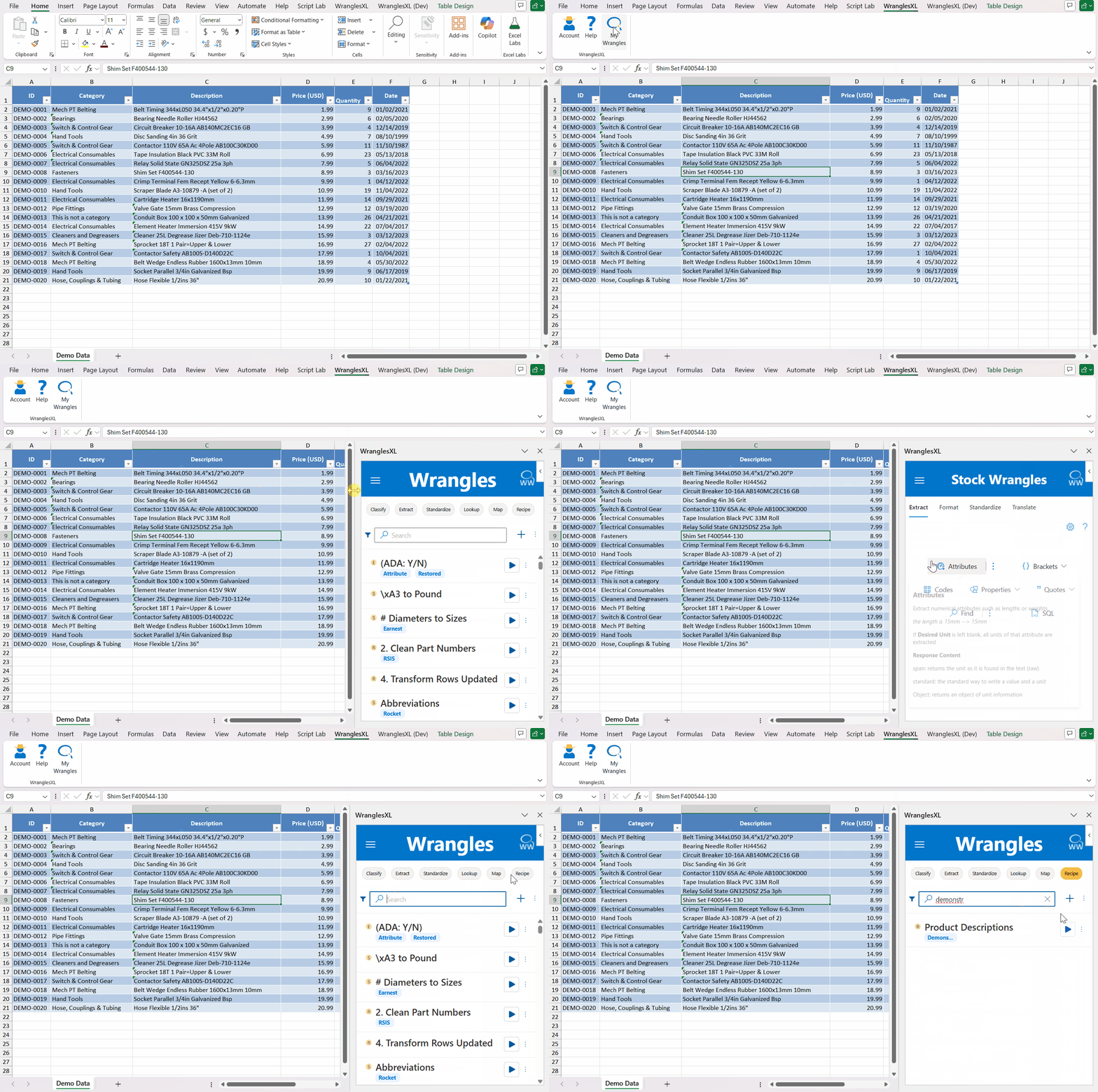
With the Wrangles add-in installed in Excel you will see an additional tab named "Data Wrangles" at the top of the tool bar. The Wrangles Task Pane can be reached by opening the Data Wrangles tab, then clicking on the "My Wrangles" button.
The Wrangles Task Pane defaults to the Classify page when first opened but from here you can reach all your Wrangles. You'll notice Classify, Extract, Standardize and Map (if unlocked for your Wrangle Works account) tab at the top of the task pane. These will navigate you to their respective Wrangle categories.
In the upper left-hand corner, you'll see the Navigation Menu button. Here, you'll find all the categories previously mentioned as well as Recipes (if unlocked), Format and Translate.
The gif below shows you around the Wrangles Task Pane:
Running a Wrangle
-
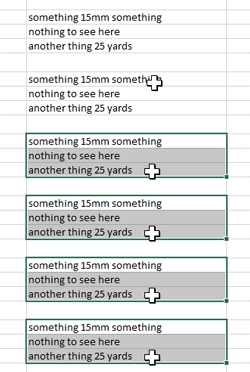
Select data. To select an entire column, just click on the letter. The Wrangle will figure out where the data is. You can also select a subset of a column as you see in the gif.
-
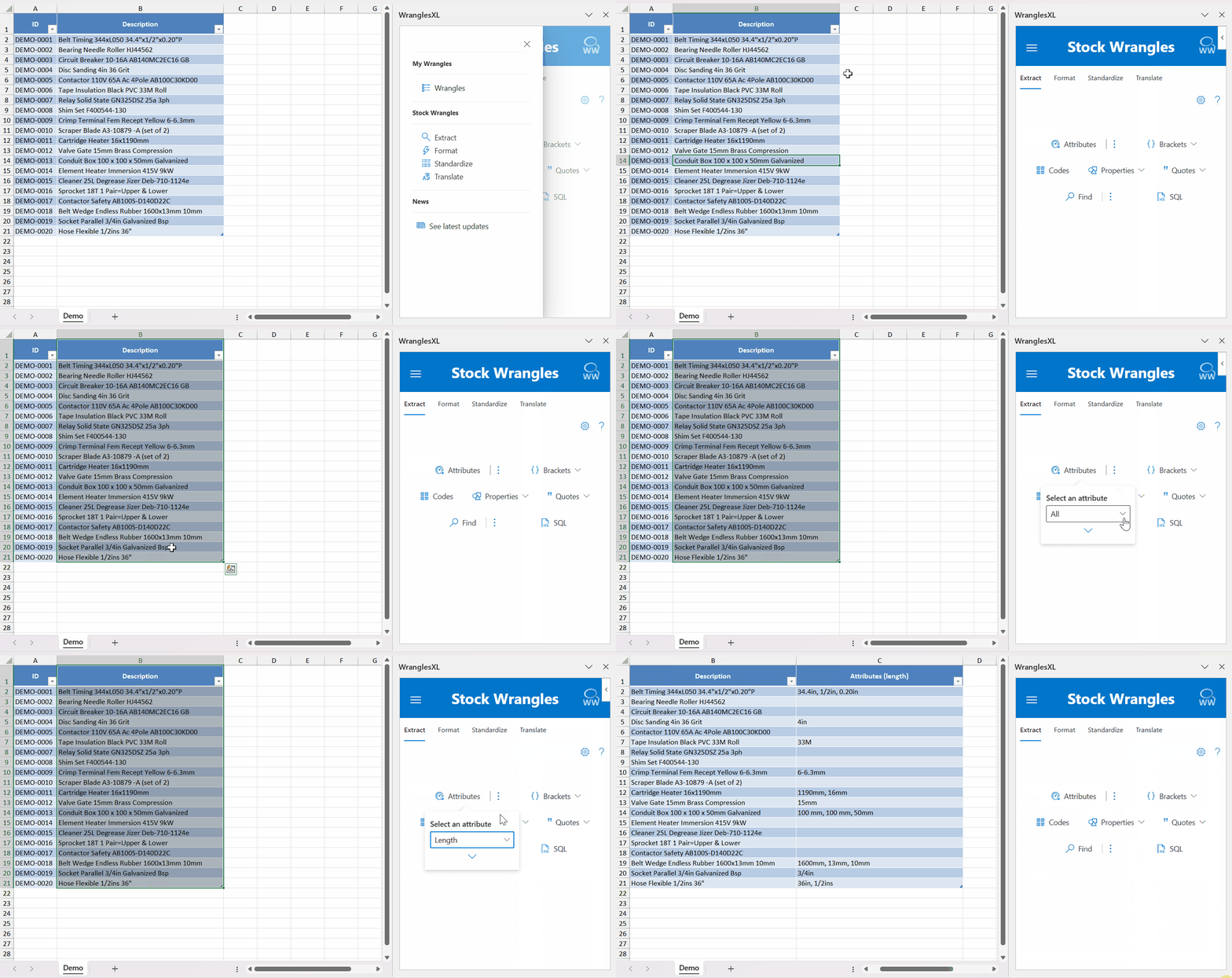
Choose your Wrangle. Wrangles are grouped into categories on the header menu. By choosing a category, you'll open the Wrangles "Task Pane" to the right of your Excel sheet. The Task Pane will present you a list of Wrangles. Run a Wrangle by clicking its button or name. Some Wrangles require a parameter, such as a target language or list delimiter. A progess bar will appear near the top of the add-in to indicate that the Wrangle is running. Wrangles can be canceled by pressing the escape key.
-
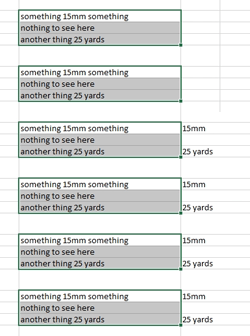
Get your data. Results appear to the right of your selection. The Wrangle inserts a column for you, so you do not need to add an empty one yourself. Wrangles won't overwrite your data.
Note: If users click into a cell when running a wrangle, that wrangle will be paused until the user exits the cell.
What do Wrangles do?
Wrangles are grouped into several categories.
Each guide contains additional details for example Wrangles within each Category. They are worth reviewing - often there's more to a Wrangle than meets the eye!
- Extract Identify and extract meaningful information from unstructured text
- Format Quickly reformat data
- Standardize Replaces words or patterns with anything of your choosing
- Classify Predict which categories items belong to
- Translate Translate text between languages
Types of Wrangle
Wrangles come in 3 types:
- Stock: These are pretrained models that function out of the box. Identify information such as colors or weights from text, translate between languages or quickly reformat data. They are included with the free version of the Excel add-in.
- DIY: train custom Wrangles to transform data specific to you. Identify information specific to your company or industry, predict which of your own categories records belong to. DIY wrangles can be shared with other users. You must license the paid version of the Wrangles add-in to create and run DIY Wrangles.
- Bespoke: custom Wrangles created by WrangleWorks. Bespoke models are able to use more advanced machine learning that go beyond the limitations of DIY models. Contact us if you'd like to learn more.
In Depth Examples
Open the tutorials for in-depth examples showing how to create, use, edit, and share Wrangles.