Formatting Wrangles are convenient for transforming data in terms of case, padding, and merge/split.
Click here to learn how to use Format Wrangles in a recipe.
Case
Change the case of the input.
Tabset
Example
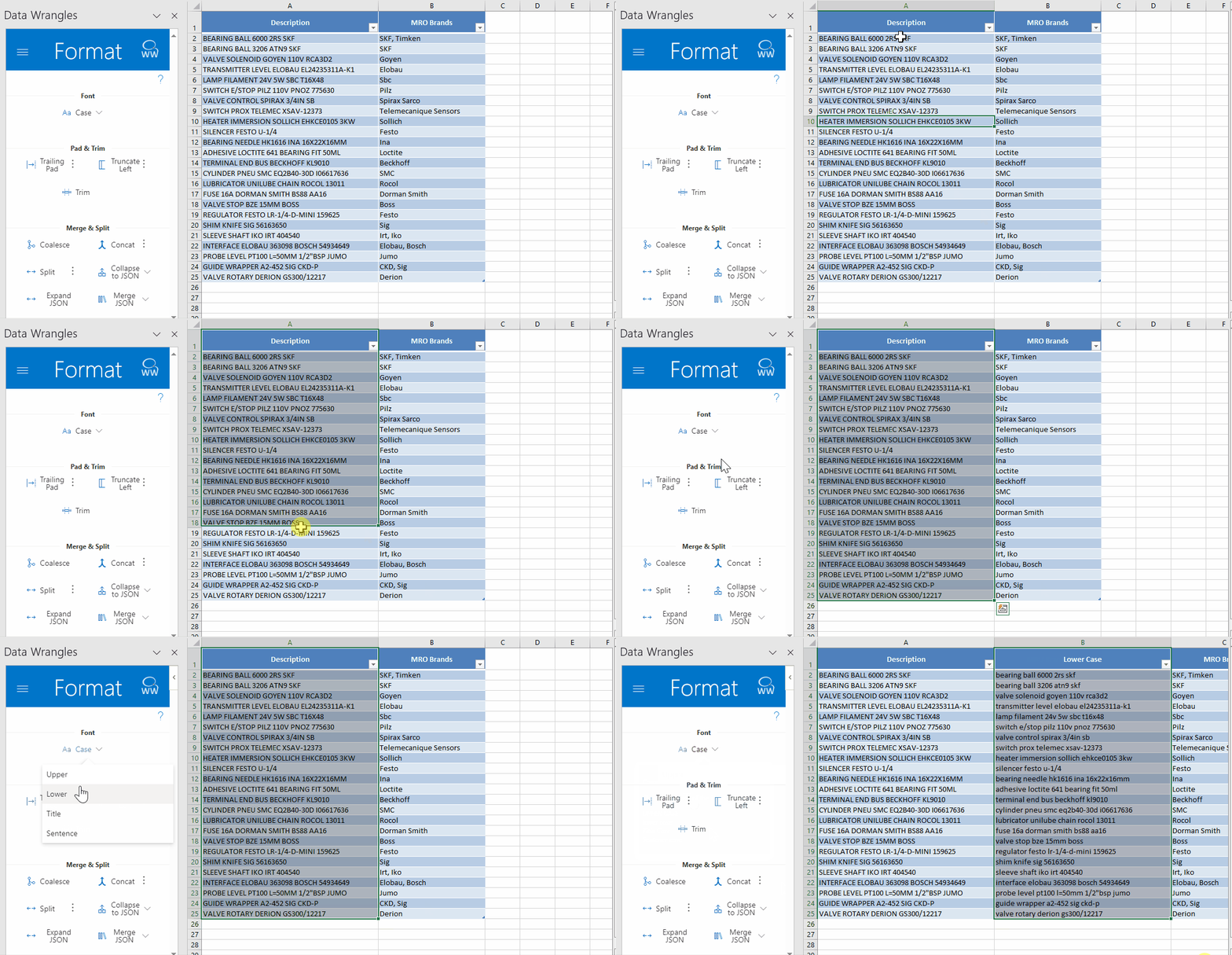
Options
| Option | Example |
|---|
| Upper | UPPER CASE |
| Lower | lower case |
| Title | Title Case |
| Sentence | Sentence case |
Coalesce
Merges multiple columns into one, only merging the first non-empty values in the column; "first" being from left to right.
Useful if you have multiple columns with similar data but only need one column.
Click here to learn how to use Coalesce Wrangles in a recipe.
Tabset
Example
Collapse to JSON
Merge multiple columns into JSON strings.
Tabset
Example
To Array
To Object
For objects the column headers will be used as the keys and must be unique.
Options
| Option | Description |
|---|
| To Array | Create an array e.g. ["value1", "value2"] |
| To Object | Create an object. This requires column headers, which will be used as the keys. e.g. {"header1": "value1", "header2": "value2"}. |
Concatenate
Merges multiple columns into one. All columns are combined together sequentially.
Click here to learn how to use Concatenate Wrangles in a recipe.
Tabset
Example
Options
| Option | Description |
|---|
| Delimiter | Optional character(s) to be added between the input columns |
Expand JSON
Expand JSON strings into multiple columns.
Tabset
Example
From Array
From Object
For objects, the keys will be used as the new column headers.
Merge JSON
Merge multiple JSON objects or arrays together into one object or array.
Tabset
Example
Merge Array
Merge Object
Options
| Option | Description |
|---|
| Merge Array | Merge JSON arrays into one array e.g. ["value1"], ["value2"] -> ["value1", "value2"] |
| To Object | Merge JSON objects into one. e.g. {"header1": "value1"}, {"header2", "value2"} -> {"header1": "value1", "header2", "value2"}. |
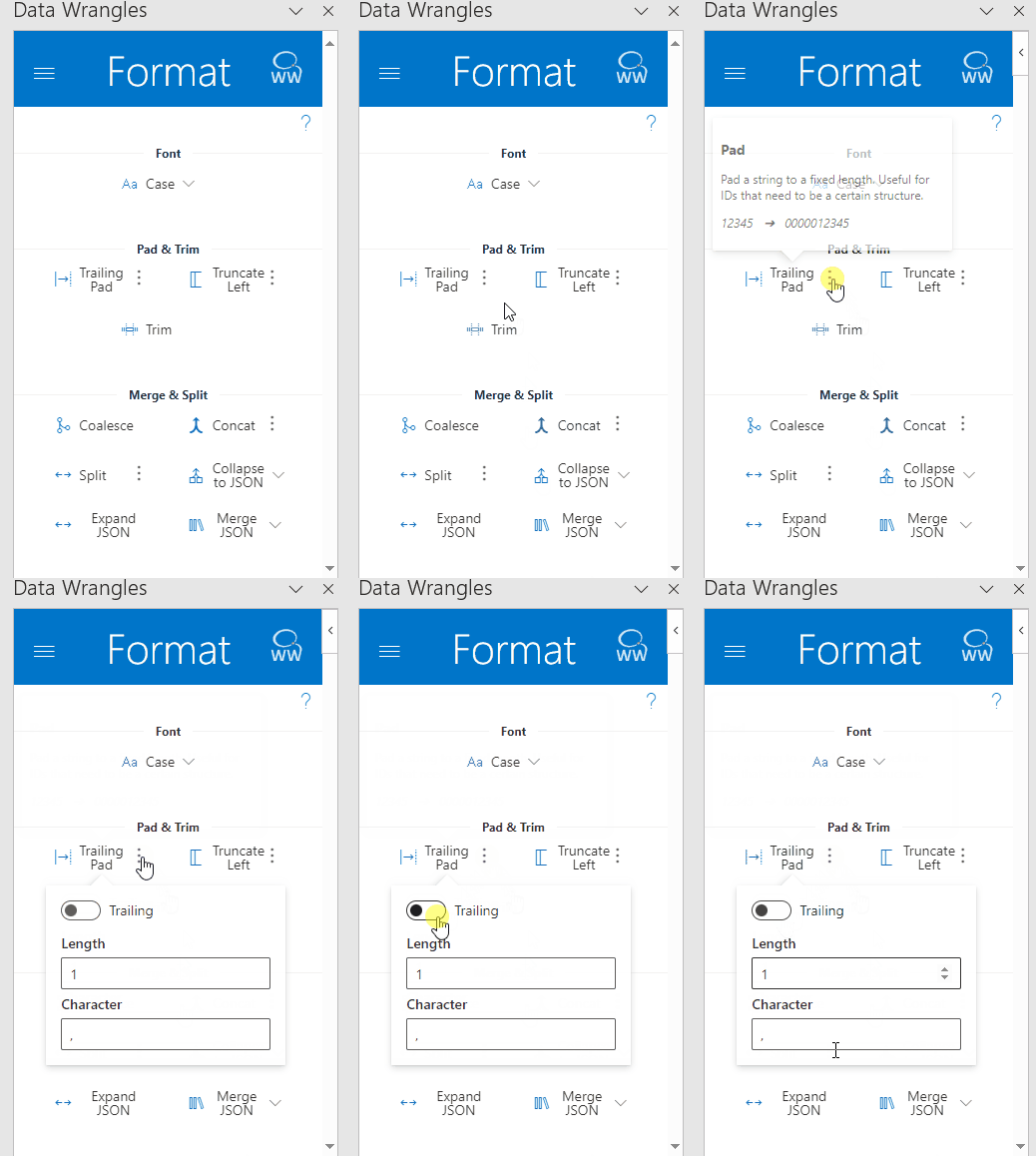
Pad
Pad text to a fixed length. Useful for IDs that must follow a specific format. You can choose between two options, Leading and Trailing and also have the option of character and length.
Tabset
Example
Length = 10 | Char = 0 | Pad = Leading
Options
| Option | Description |
|---|
| Leading / Trailing | Whether to append the characters to the start or end of the input |
| Length | The fixed length of the output text |
| Char | The character(s) to be appended to pad up to the total length |
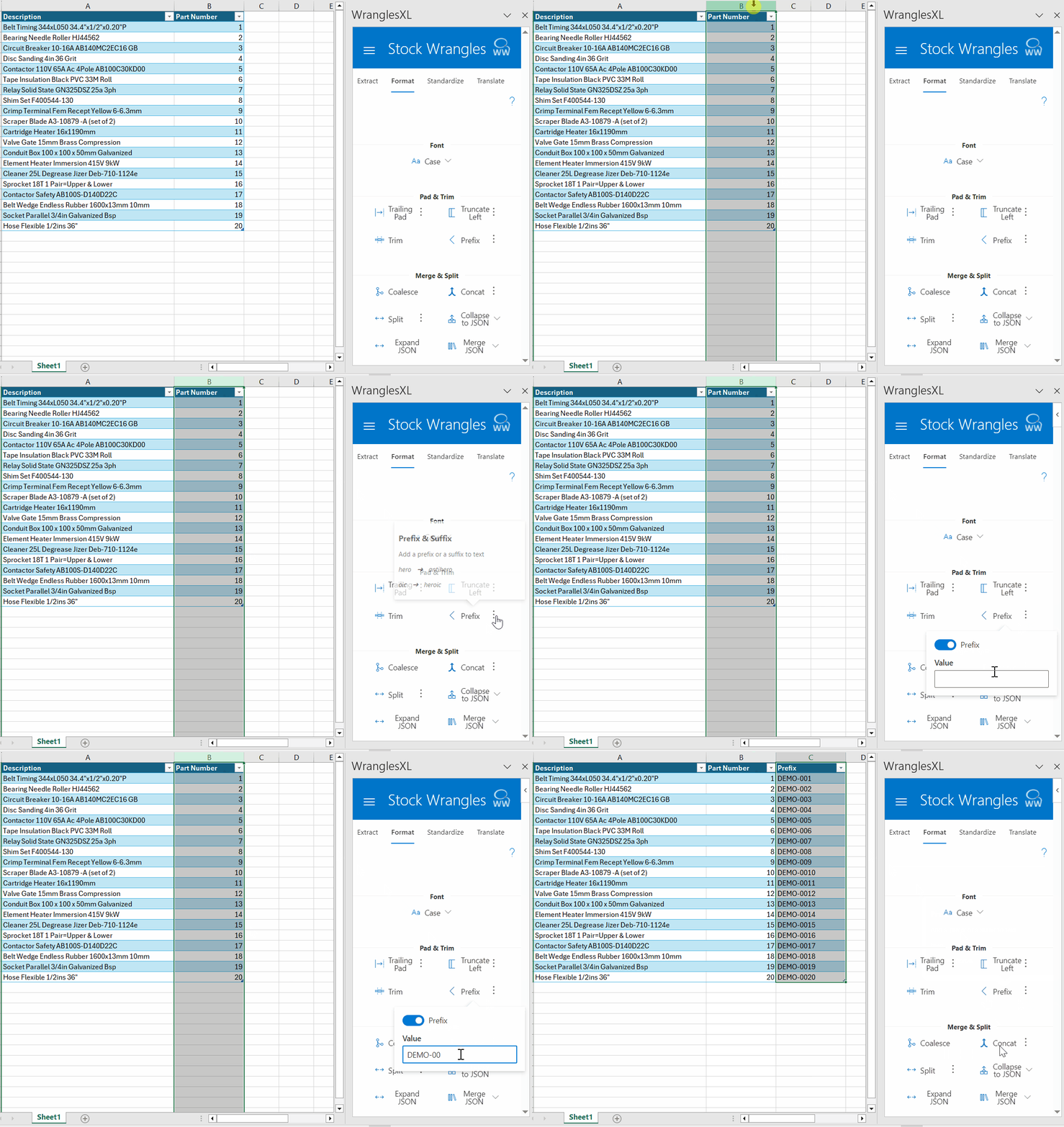
Prefix/Suffix
Adds a prefix or suffix to selected columns.
Tabset
Example
Value = DEMO-
Options
| Option | Description |
|---|
| Prefix/Suffix | Whether to add a prefix or a suffix to the input |
| Value | The value of the prefix or suffix |
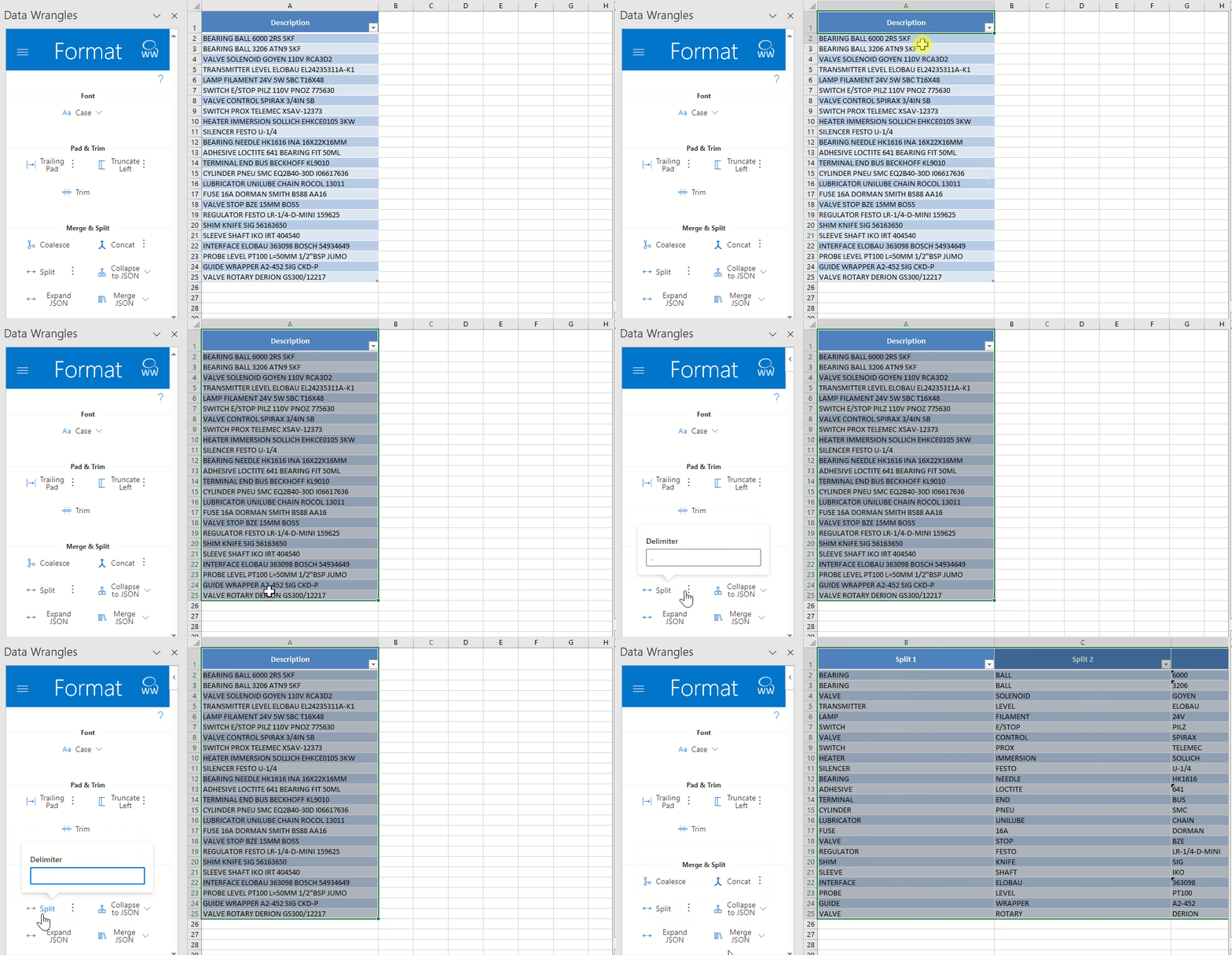
Split
Splits an input into multiple columns.
Click here to learn how to use Split Wrangles in a recipe.
Tabset
Example
Options
| Option | Description |
|---|
| Delimiter | The character(s) that the input will be split on |
Trim
Removes excess whitespace from the start and end of text.
Tabset
Example
Truncate
Truncate text to take a snippet from longer text.
Tabset
Example
Length = 3 | Trunc = Right
Options
| Option | Description |
|---|
| Length | The desired length of the snippet you want to extract |
| Left | Keep the characters starting from the beginning of the text |
| Right | Keep the characters starting from the end of the text |
Note: Negative numbers can be used to truncate the opposite of the selected direction (Left/Right).