Extracting Meaningful Information From Dirty Data
In this tutorial we will take a set of dirty product data and wrangle it into an easy to read, clean data set.
Below, you'll see the data set we are starting with:
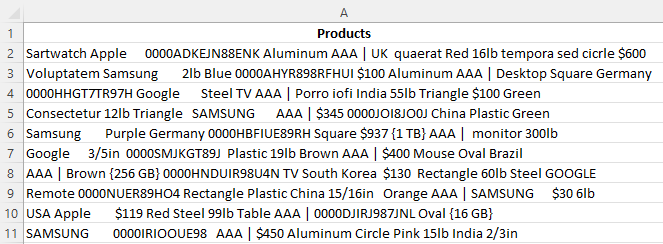
At first glance, the data looks very unorganized and has misspellings, extra spaces and noise, all of which we will work to get rid of. The data also contains brand names, material types, colour, weight, what looks like part numbers, price, country of origin and also product type. With wrangles, we will not only clean the data but we will also extract meaningful information from it.
Now, let's get ready to wrangle.
Extracting Materials
To reformat our data, we will start by creating the "Materials" column. To achieve this, we'll extract all materials from the text using the "Materials" wrangle located under the "Properties" section.
You can run a Wrangle on the whole column or just a few cells click here for more info.
- First, highlight all the cells containing your data or just select the entire column.
- Navigate to the Data Wrangles Task Pane and click on the Properties button.
- A dropdown menu will appear; select Materials from the options.
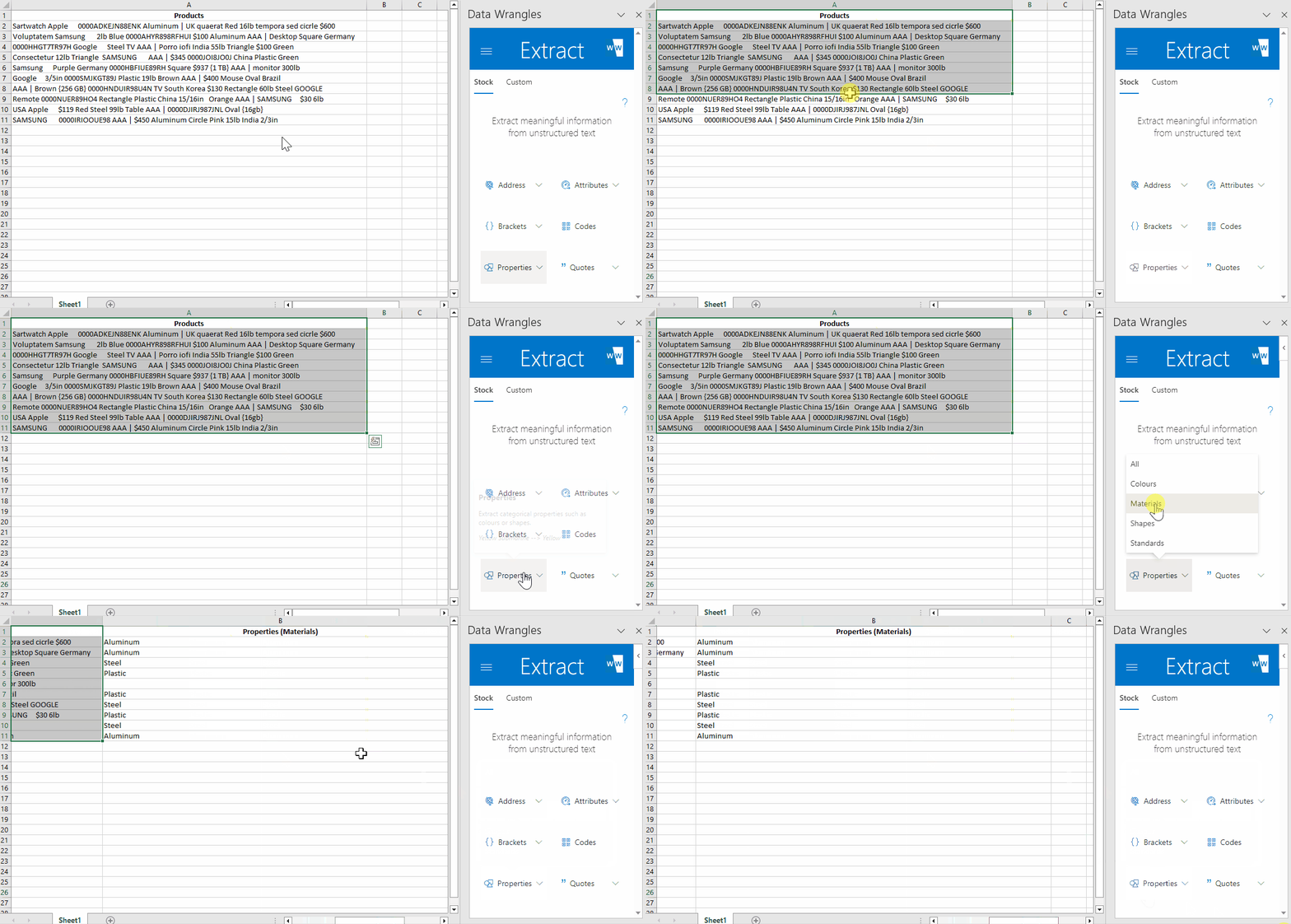
By doing this, a new column will be generated with the extracted materials.
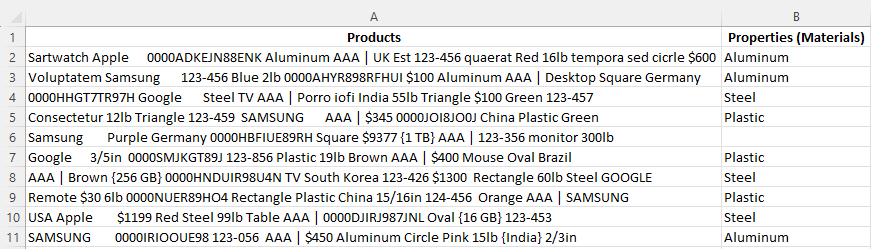
Blank cells indicate that the materials were not found or may not be present in the predefined training data. In this case, there was no material in the data to extract.
Extract Wrangles can be trained to identify specific keywords of your choice, but we'll cover that later when we introduce Custom Extract Wrangles.
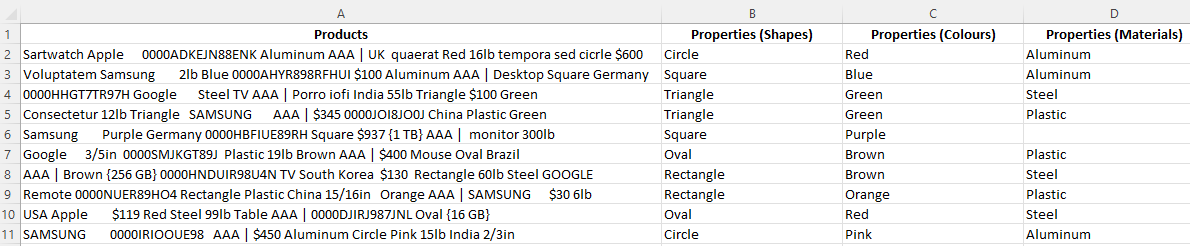
Next, follow the same steps to extract Colours and Shapes.
After extracting materials, colours, and shapes, your spreadsheet will look something like this:
Extracting Weight Attributes
Next, let's proceed with creating the "Weight" column.
- Begin by highlighting the "Products" data in your spreadsheet or table.
- In the Wrangles Task Pane, locate and click on "Attributes".
- Scroll down to the very bottom of the options and select "Weight".
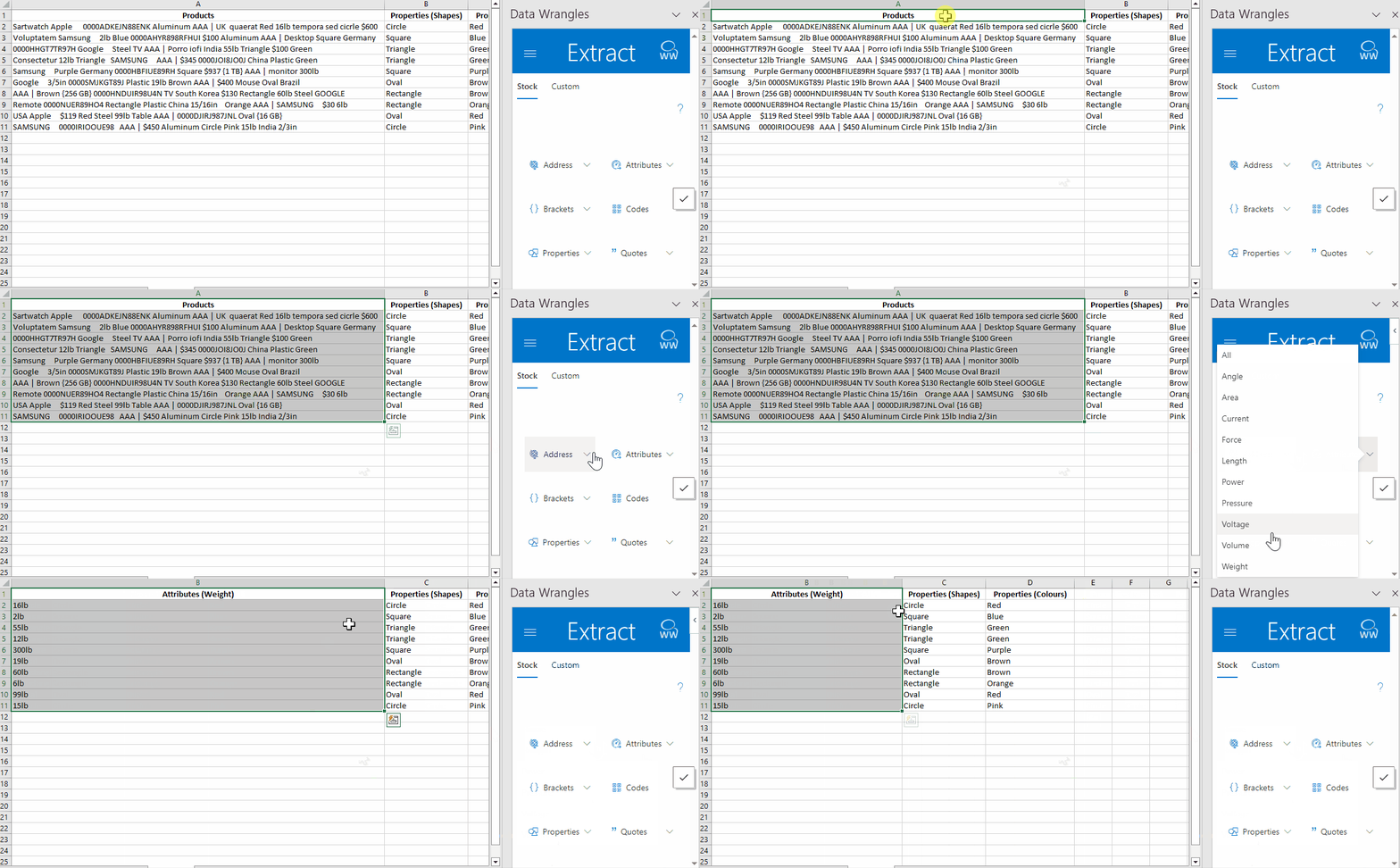
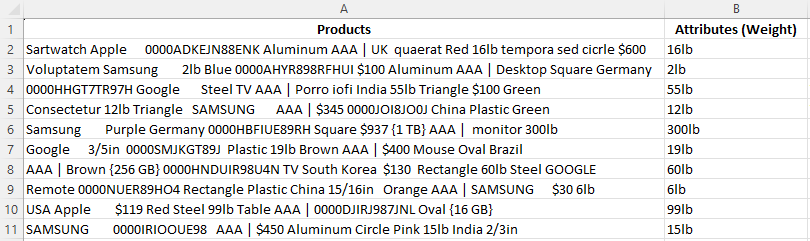
By following these steps, a new column containing the relevant weight data for each product. Below, we have named this column "Attributes (Weight)".
Extracting Codes
The next column we need to create is the "Code" column.
To achieve this, follow these steps:
- Highlight the data in the "Product" column.
- In the Wrangles Task Pane click the "Codes" wrangle.
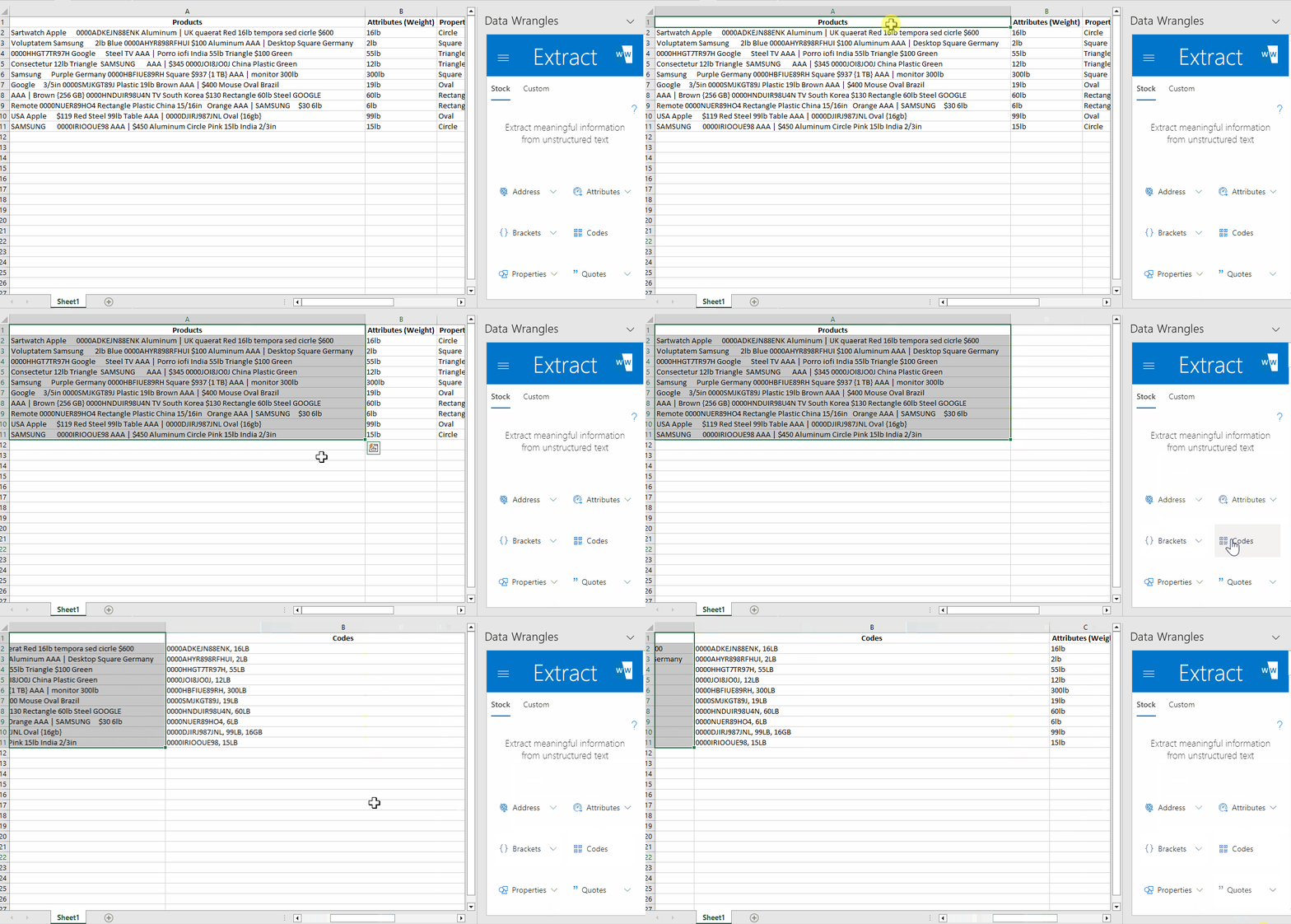
The output will look like this:

You'll notice that the tool has interpreted weight as a code (due to the combination of numbers and letters) and output it along with the code we wanted. Luckily, there is a wrangle for that, so let's see how to deal with multiple outputs.
Dealing With Multiple Extract Outputs
As you can tell, the model output the code we were looking to extract (part number) as well as the weight for each product. For each output, the part number is listed first so a split wrangle will work well in splitting these two values apart so we can drop weight values.
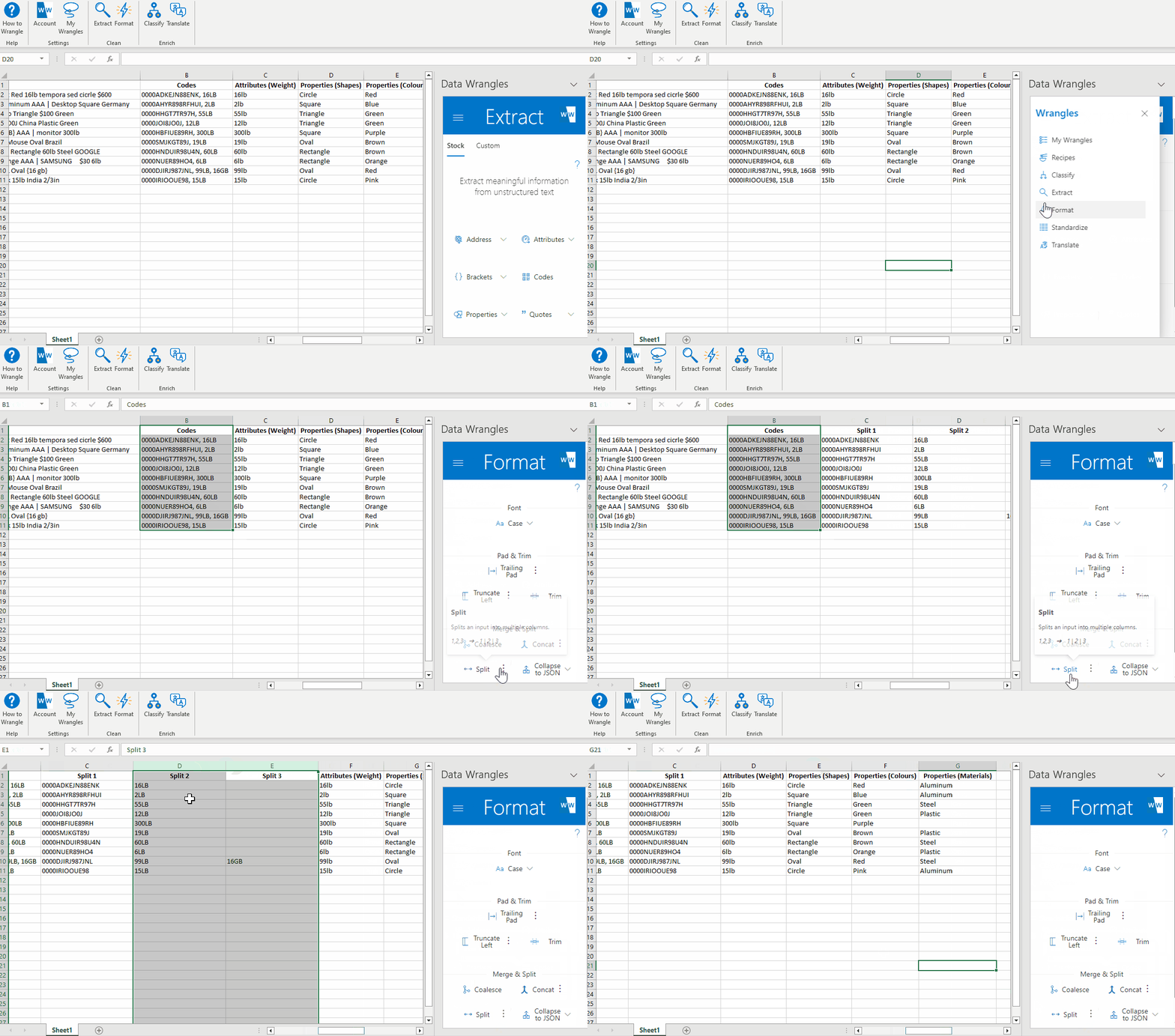
After a quick rename, we have our part number data:

Something still doesn't look right, every part number has leading zeros. Once again, there's a wrangle for that!
Remove Leading Zeros
In order to remove the leading zeros from our part numbers we will utilize the "Remove Characters" standardize wrangle. Follow the steps below to remove leading zeros.
- Navigate to the standardize page in the wrangles task pane.
- Highlight your data
- Click the options button (3 dots) corresponding to the "Remove Characters" wrangle and fill in the text box with "0000"
- Click the "Remove Characters" button.
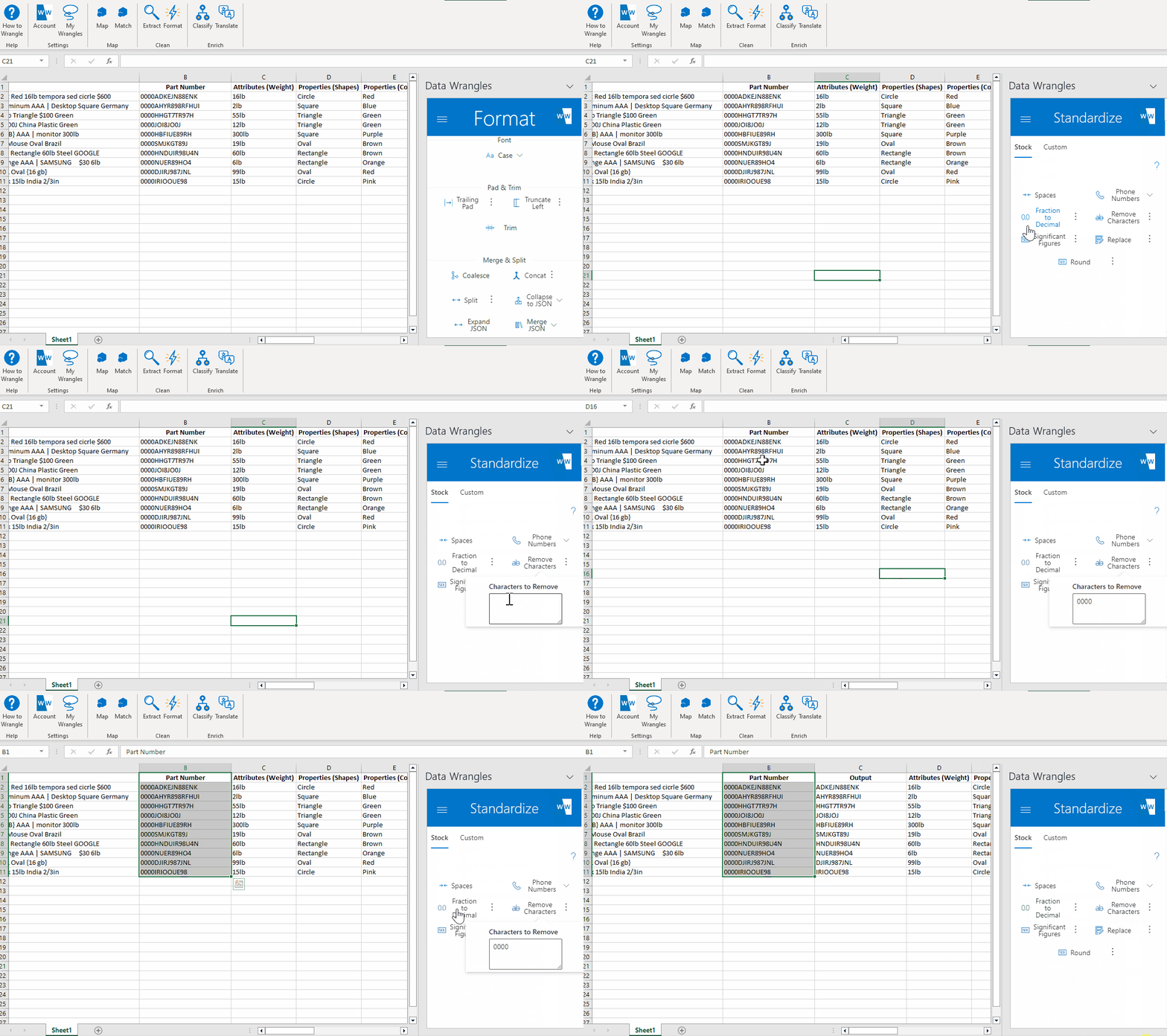
After just a few quick steps, we have a nice and clean part number column.

Extracting Countries
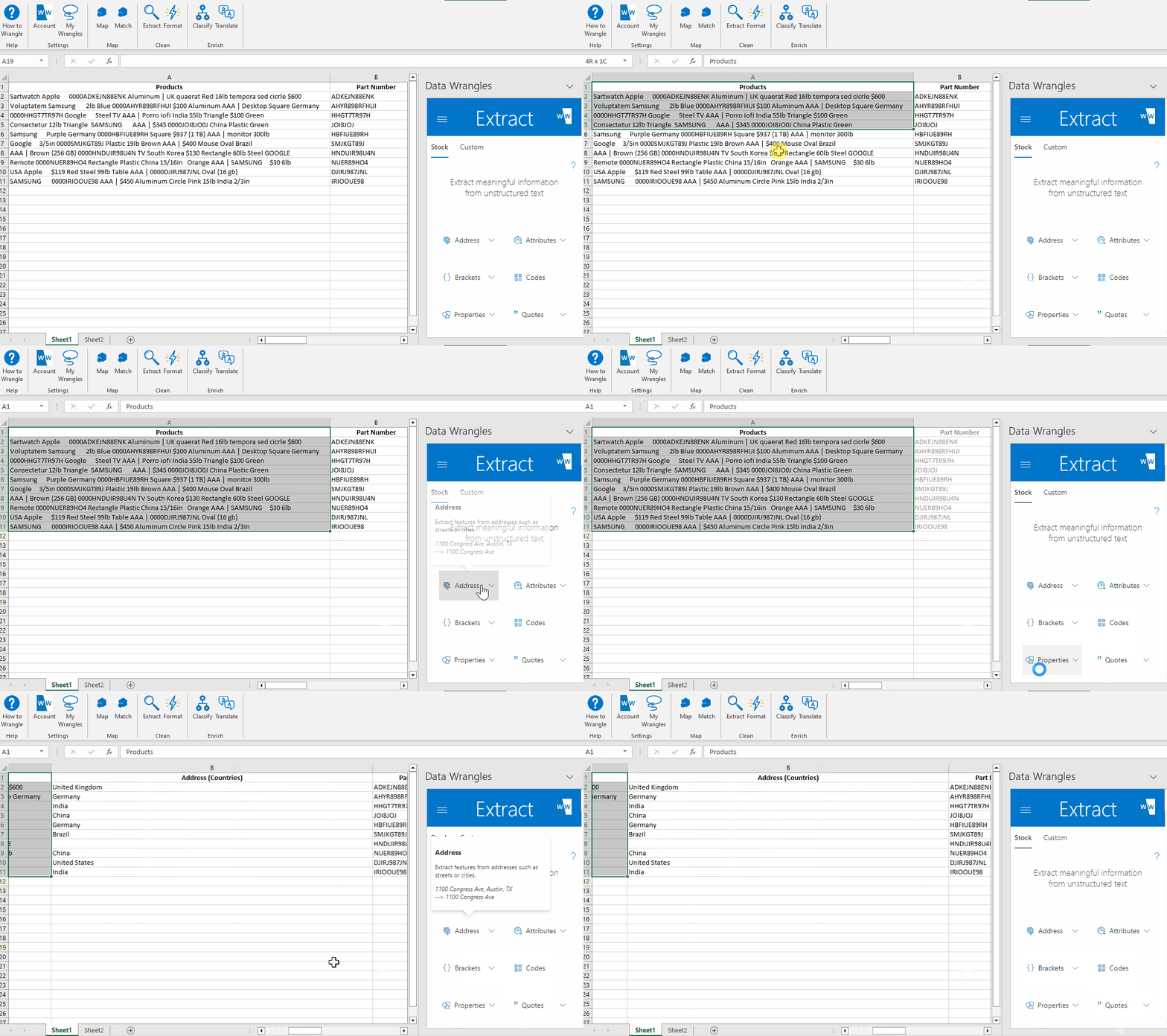
Next, we will create our "Countries" column. To do this, follow these steps:
- Highlight the data in the "Products" column.
- Click on the "Address" option.
- From the available options, select "Countries."
As we can see, the model did not pick up "South Korea" as a country.
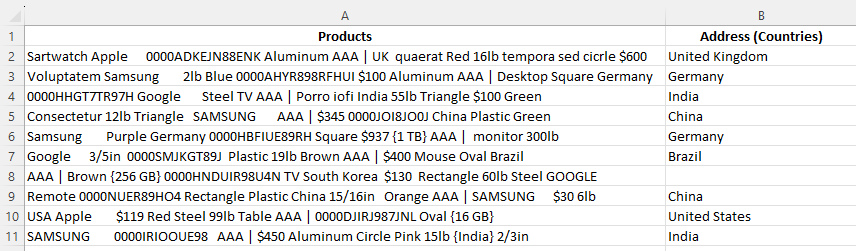
Something within the data has caused the model to break and we will have to fill this value in by hand.
Extracting Curly Brackets
The last piece of data we will extract is the information inside the curly brackets. To achieve this, follow these steps:
- Highlight the data in our "Products" column.
- Click on the "Brackets" wrangle.
- From the available options, select "Curly."
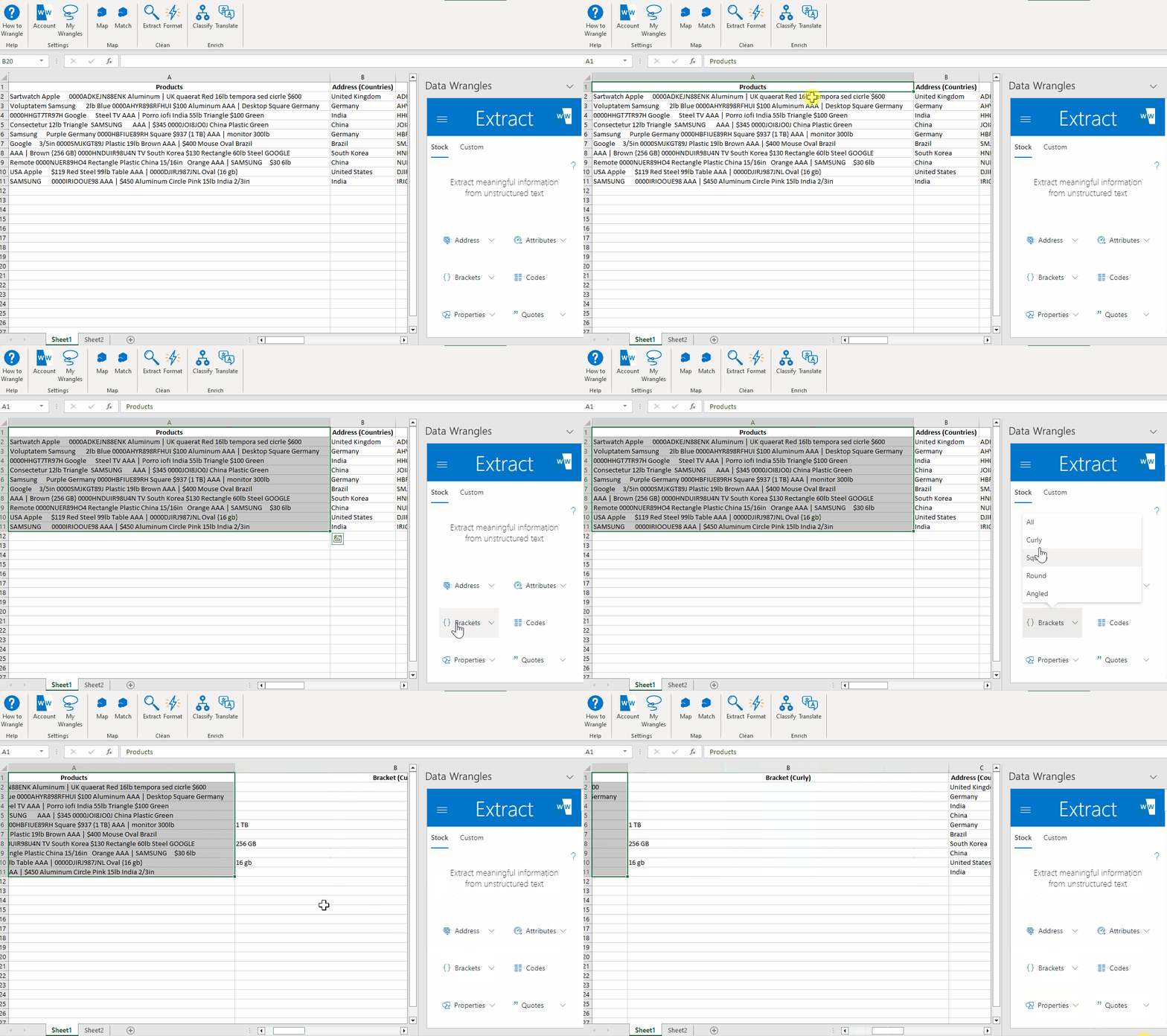
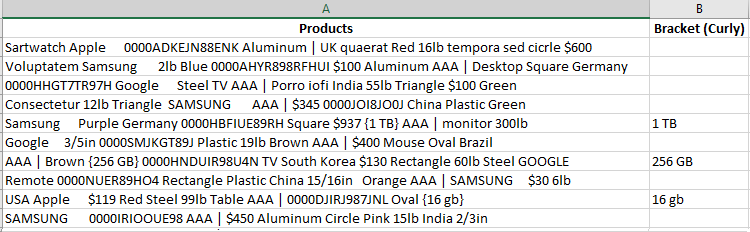
By following these steps, the data enclosed within the curly brackets will be extracted, providing you with the desired information.
The output will be formatted as follows:
Next we will introduce DIY Extract Wrangles, also known as Custom Extract Wrangles.
Extracting Brands
Since there isn't an existing stock wrangle specifically designed to extract the brands in our product data, we will need to train a DIY (aka Custom Wrangle) to create the "Brand" column. This wrangle will allow us to define and retrieve the brands we specify. We will call this wrangle our Demo Brand Wrangle.
What does it mean to create a custom extract wrangle? Creating a custom extract wrangle involves training the extract model to find specific keywords. In this case, the keywords we are going to find are brands: Google, Samsung, and Apple.
To create the custom wrangle and train the model, follow these steps:
- Click on "My Wrangles" in the ribbon.
- In the Wrangles Task Pane, click "Extract." This will open the Wrangles Task Pane, where DIY Wrangles can be used and created.
- In the Wrangles task pane you will see a search bar (used to search this wrangle type), a plus sign (to add a new wrangle), a gear (settings) and a question mark (help link). We need to create an Extract Wrangle, so click on the + button.
- Once you click on the + button, a new side window and sheet will appear. The sheet will have the title Train an Extract Wrangle and will have three columns, Entity to Find , Variation (Optional) and Notes. Here, we can add data to our Demo Brand Wrangle.
- Enter the brand names data (Samsung, Apple, Google) in the "Entity to Find" column as shown in the example below. Any variations (misspellings, abbreviations etc.) of the data you wish to extract can be put in the "Variation (Optional)" column. We do not have any variations in our data so we will leave this column blank. On the Data Wrangles task pane you'll see text box labeled "Name:", name the Wrangle "Demo Brands"
Once the wrangle is done being trained a green check mark will appear indicating that your wrangle is ready for use.
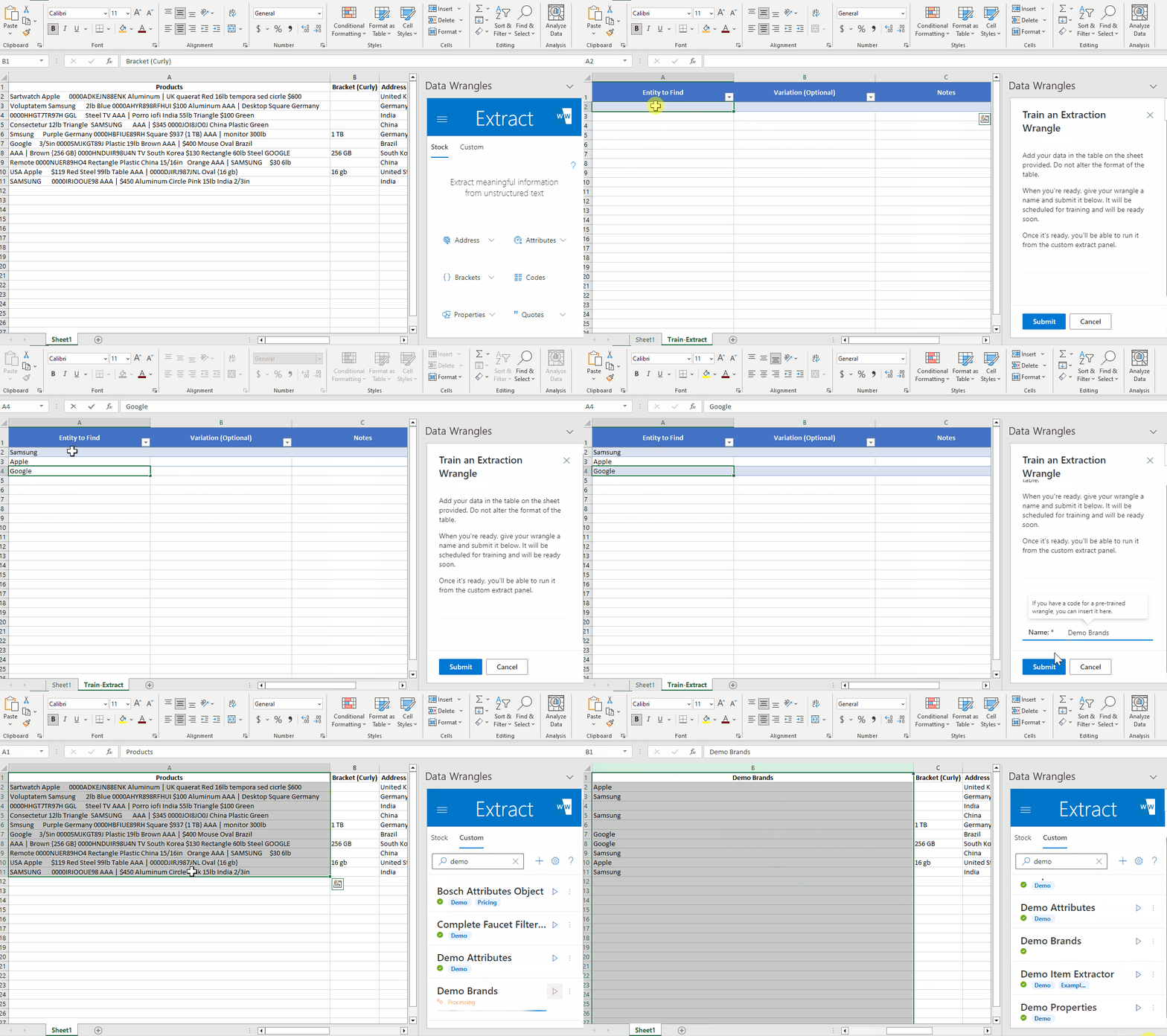
After clicking submit the Train-Extract sheet will be automatically deleted.
Creating and running a new wrangle takes very little time, but it looks like our model might have missed some brands.
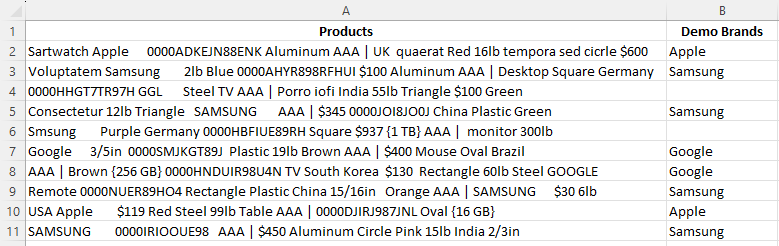
As we can see, some of the brand names were not found. Upon closer inspection, it appears that "Google" is abbreviated as "GGL," and "Samsung" is misspelled as "Smsung."
To address this, let's update the Wrangle data and include some variations for the brand names.
- On the Wrangle Task Pane, click the ⁝ options button, and then select 📄 "Edit."
- In the Samsung row, we will add "Smsung" to the "Variations (Optional)" column and "GGL" to the variaton for Google.
- Click submit once again and the wrangle will be retrained with the new variations.
Now, when we run the Wrangle again, Google and Samsung will be extracted as a match for GGL and Smsung.
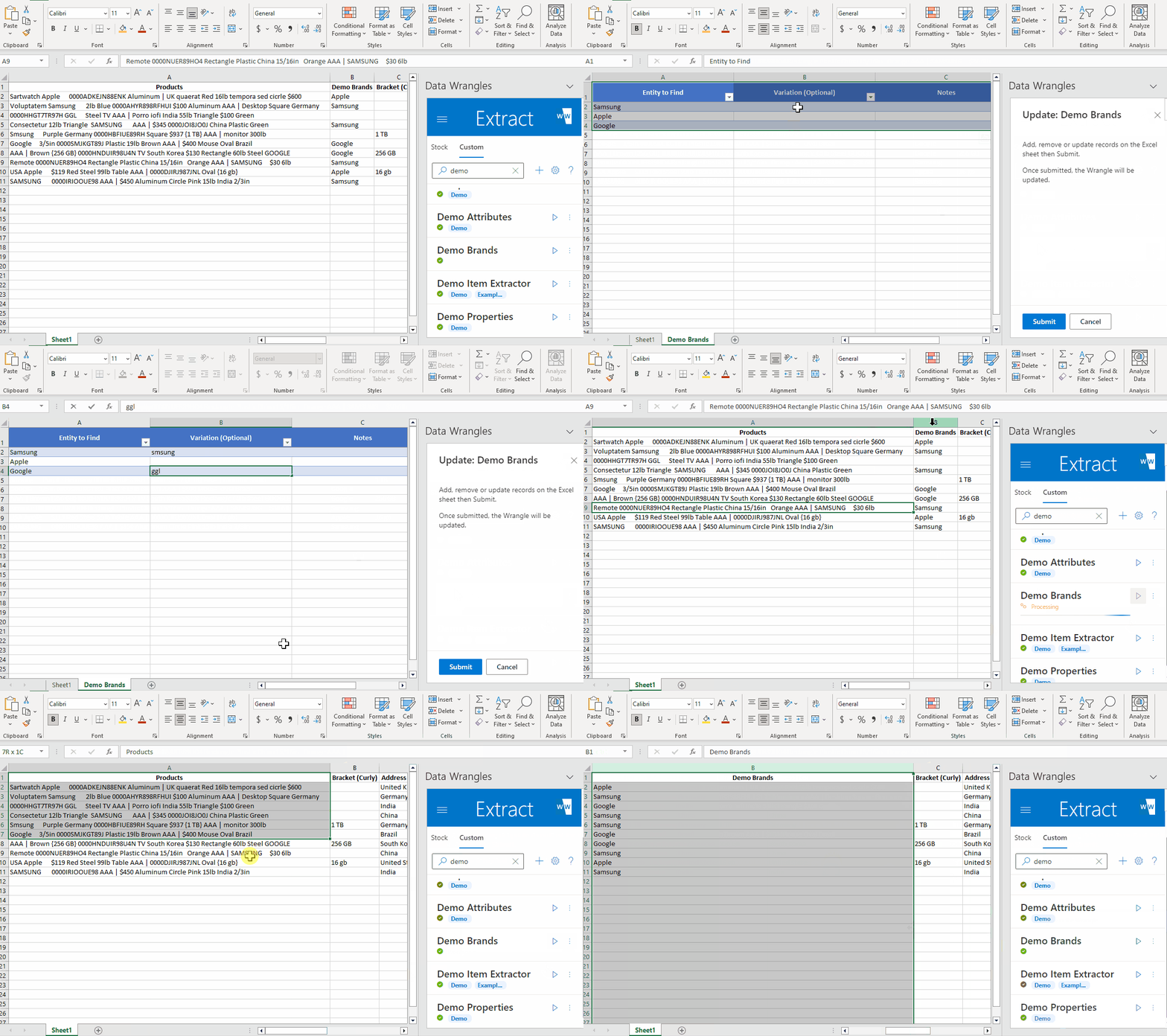
Now our model picks up a brand for every row. More variations can be added if needed by seperating each variation (within the cell) with " | ". See Extract Wrangles for more details.
Extracting Product Type
Just like before in step 6, we will need to create a diy extract wrangle to extract our product type.
Following the instructions from step 6 we have created a wrangle with the following training data:

Even though it is not in of our data, I included "smart watch" as a variation of "Smartwatch" because adding a space to a compound word is a very common mistake. Adding anticipated mistakes is a great strategy to ensure your wrangle is as robust as possible.
Using our newly created wrangle, we have the following output:
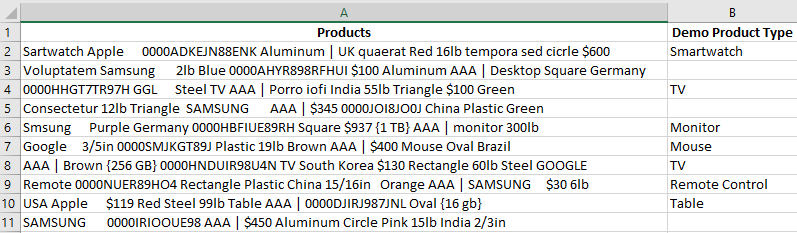
Extracting Price
Now we need to extract the price for each product. But how can we make a wrangle that can find prices when price can take on an infinite number of values? This is where regular expressions (or regex for short) come in. Regex makes use of patterns to find matches to those patterns. But what is our pattern? Each price is led by "$" and of course followed by a series of numbers, so that is our pattern to match.
Regex Cheat Sheet: A useful reference of regex terms. Regex101: A useful tool to test regex
After heading over to Regex101 it seems I have come up with a good match for our data.

But wait, what if future iterations of data included price with a decimal point? Would our pattern pick up cents?

It looks like we will have to fix our pattern if we want our wrangle to be as robust as possible.

Now we have a nice pattern that will catch every iteration of a possible price. But what does this pattern mean?
The dollar sign ($) is a special character in regex, meaning it performs a certain function. In order to find the dollar sign itself, we must escape it with a backslash. So, the first piece of our pattern is "$".
The second piece to our pattern, "\d+". "\d" matches any digit, the "d" is escaped in order to make this a regex special character (just the opposite of our dollar sign). The plus sign is regex's way of matching one or more times. So, this piece will match any integer no matter the amount of digits.
The third piece, ".?", matches a period which may or may not be in our pattern. Like the dollar sign, periods are special characters in regex and must be escaped. The question mark is regex's way of leaving things optional. So, this piece of the pattern matches regardless of the presence of a period.
And now the last piece, "\d*". Again, "\d" matches any digit, the "*" is a regex special character that matches the preceding character zero or more times. So, this piece of the pattern matches any digit zero or more times.
See the gif below to learn how to build regex into your extract wrangle.
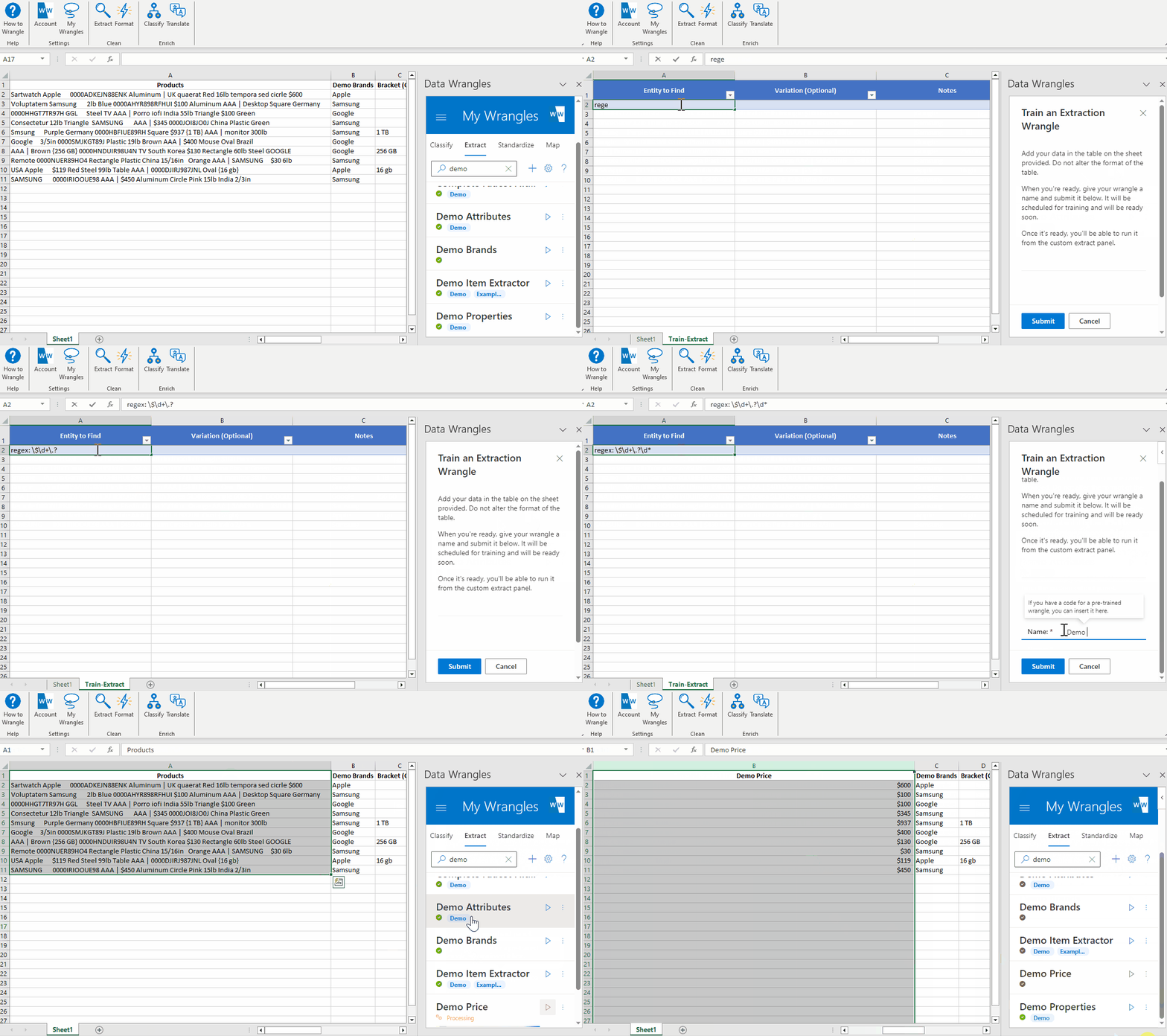
Note: Regex patterns must be led with "regex:" in order for the model to recognize them as regex patterns
Creating a Description
Sometimes it is useful to recombine in order to piece together a better description that what you originally started with.
After rearranging the columns in our data, a concatenate wrangle can be utilized for this very thing.
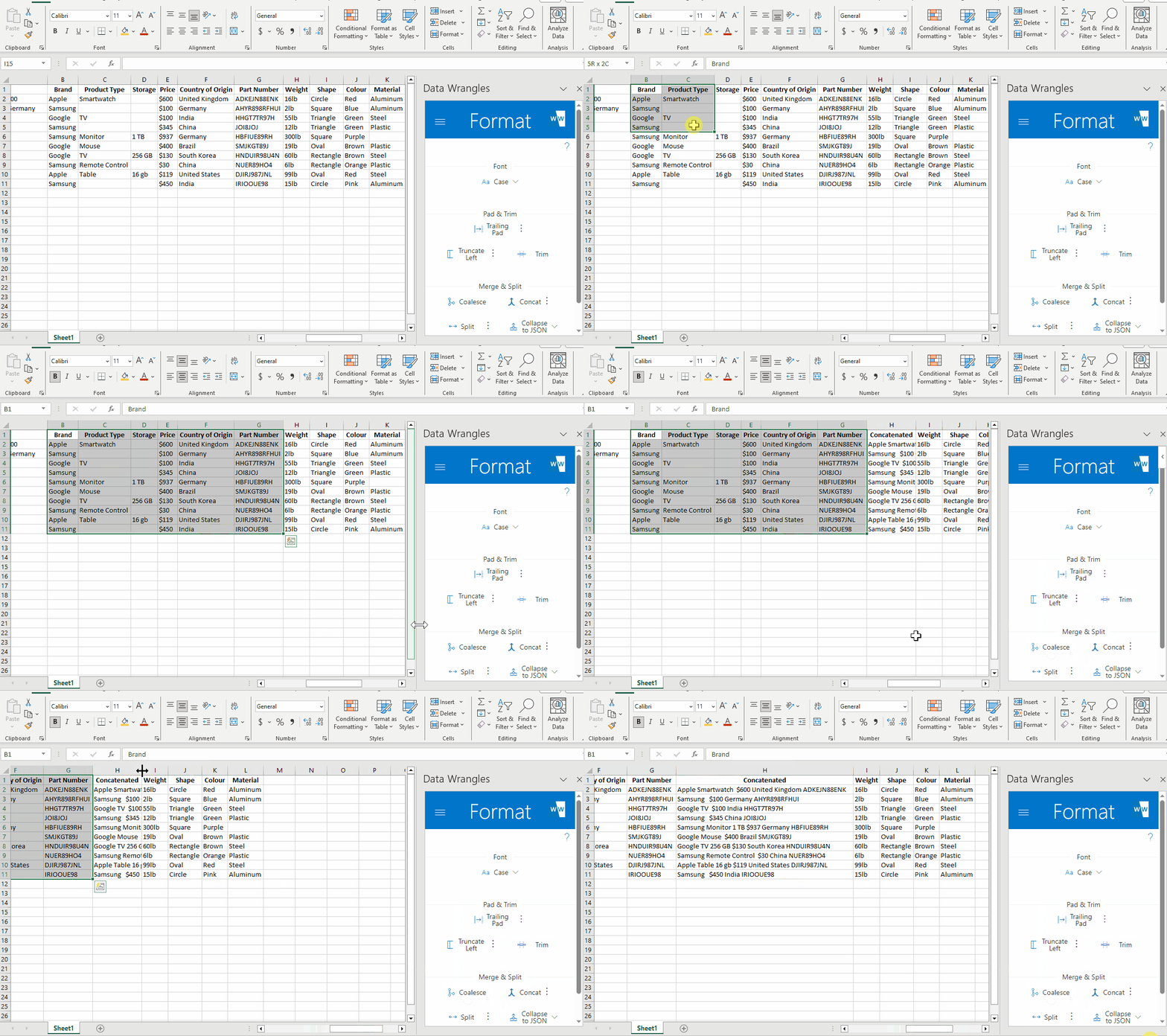
I purposefully did not include every column we have extracted in order to keep the description clean and concise. Feel free to include as many or as little as you wish when wrangling data of your own.
Final Product
Our final product is a clean, easy to read data set that free of noise.
