DIY extract wrangles can be taylored to your data to identify and extract meaningful information from unstructured text. All custom extract wrangles (both diy and bespoke) can be found under the Extract tab of My Wrangles in the Data Wrangles task pane.
There are 2 types of DIY extract wrangle: Pattern Matching and AI. Read below to learn more about each.
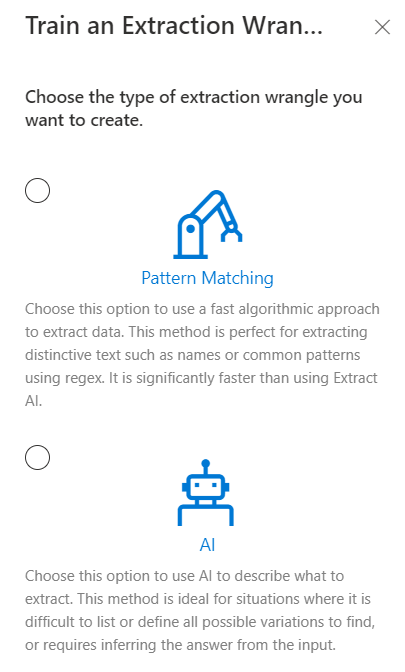
Pattern Matching Extract Wrangles
Pattern matching extract wrangles return results that match the pattern(s) within the training data. These patterns can be words, sentences, numbers, symbols, any combination of the previous, or they can also be regular expressions as well. Read below to learn more about Pattern Matching Extract Wrangles.
It is important to note that (non-regex) pattern matching extracts match whole words that are separated by word boundaries. Word boundaries include anything that is not a letter, number or an underscore.
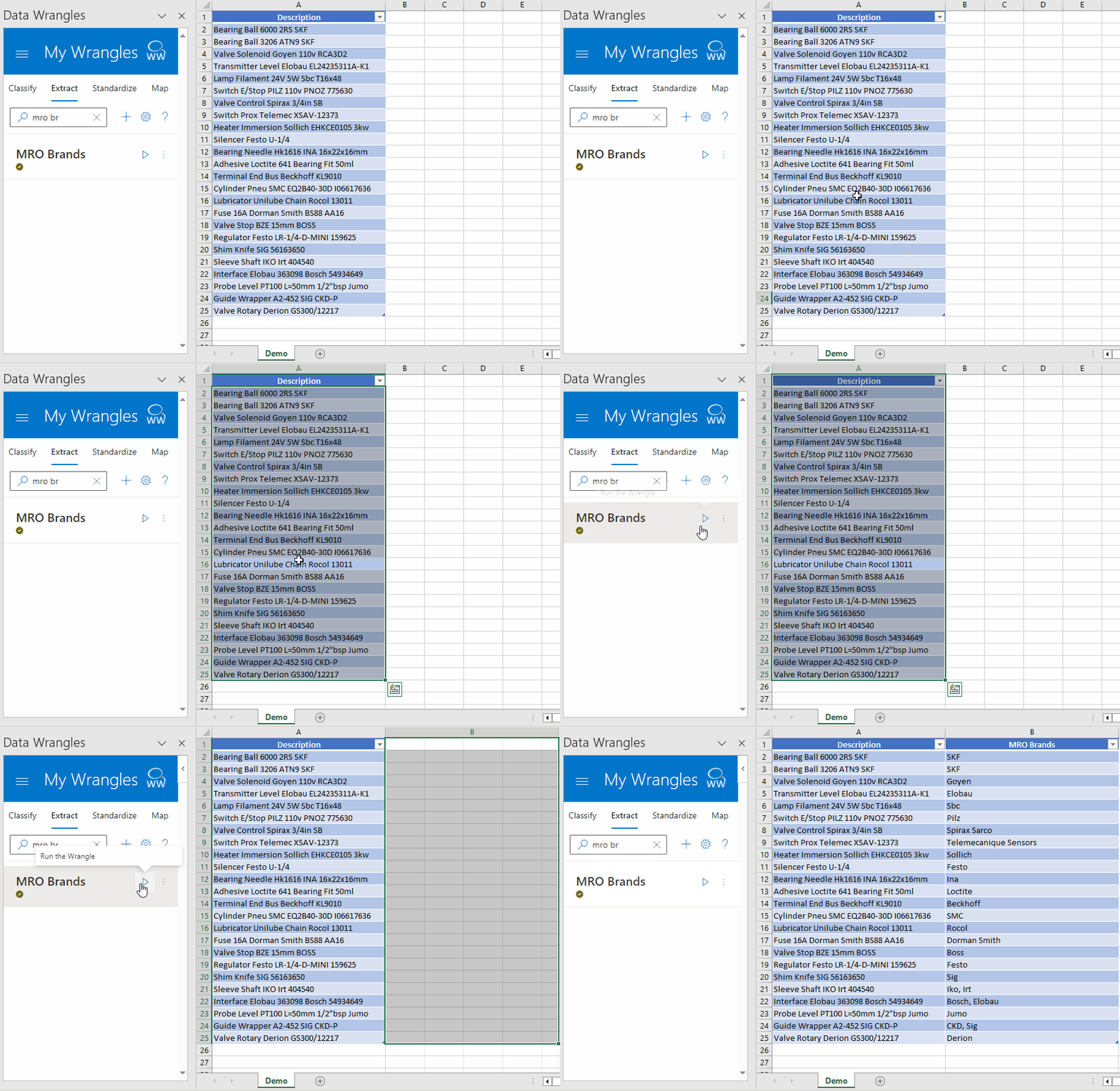
Training Pattern Matching Extract Wrangles
To train an extract wrangle, first navigate to the extract tab (under the My Wrangles section of the Wrangles task pane) and click on the + icon. A new sheet (named Train-Extract) will open, this is where your training data will be stored.
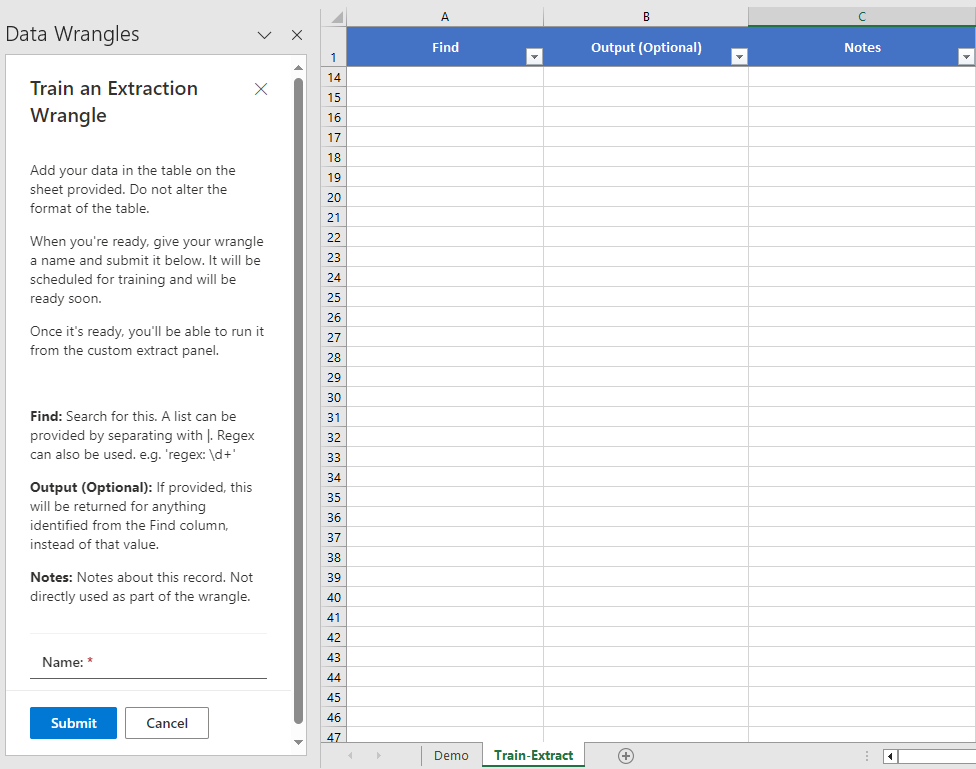
There are three columns that store training data, Find, Output (Optional), and Notes.
Find
Search for this. A list can be provided by separating with |. Regex can also be used. e.g. 'regex: \d+'.
Output (Optional)
If provided, this will be returned for anything identified from the Find column, instead of that value.
Notes
Notes about this record. Not directly used as part of the wrangle.
Once your data is filled in, give your wrangle a name and click submit. Your wrangle will now appear in My Wrangles under the Extract tab.
Updating Extract Wrangles
To update your extract wrangle, first click on the three dots next to the play button then click Edit.

From here, simply update your wrangle as needed then click submit. Once your wrangle has been trained, it will be ready for use.
Note: When you retrain your wrangle, the training sheet is now named after the wrangle.
Extracting Values Written in Multiple Variations
Extracting data when variations exist can be done in two ways:
Multiple Rows
Write each variation on a separate row
| Find | Output (Optional) | Notes |
|---|---|---|
| MX | Mexico | |
| Mex | Mexico | |
| UK | United Kingdom | |
| GRB | United Kingdom |
Same Row
Write each variation on the same row, separated by a bar (|)
| Find | Output (Optional) | Notes |
|---|---|---|
| MX | Mex | Mexico | |
| UK | GRB | United Kingdom |
Extract using Regular Expression
For more advanced use, regular expressions (regex) can be used. To apply regex, prefix with regex:
Regex Cheat Sheet: A useful reference of regex terms. Regex Testing: A useful tool to test regex
In order to implement regex into an extract wrangle, simply add "regex:" to the Find column before typing in your regex pattern.
Samples
Extracting only the last name form a list of names.
| Find | Output (Optional) | Notes |
|---|---|---|
| regex: \s\w+ | Matches any word character (one or more times) that follows a space. |
| → |
|
AI Extract Wrangles
AI Extract Wrangles are a premium feature that allow users to use text prompts to describe the type of content to extract from an input. Contact us by email or at this link to have Extract AI Wrangles enabled for your account.
There are some differences between AI Extract Wrangles and Pattern Matching Extract Wrangles that are worth mentioning. The biggest difference is that AI Extract Wrangles output a single column for each row in the "Find" column of the training data, as opposed to Pattern Matching Extract Wrangles which output all results to a single column. Another difference between the two is that AI Extract Wrangles can draw inferences from the input data. That is, the output does not necessarily have to be represented in the training data in any way.
Training AI Extract Wrangles
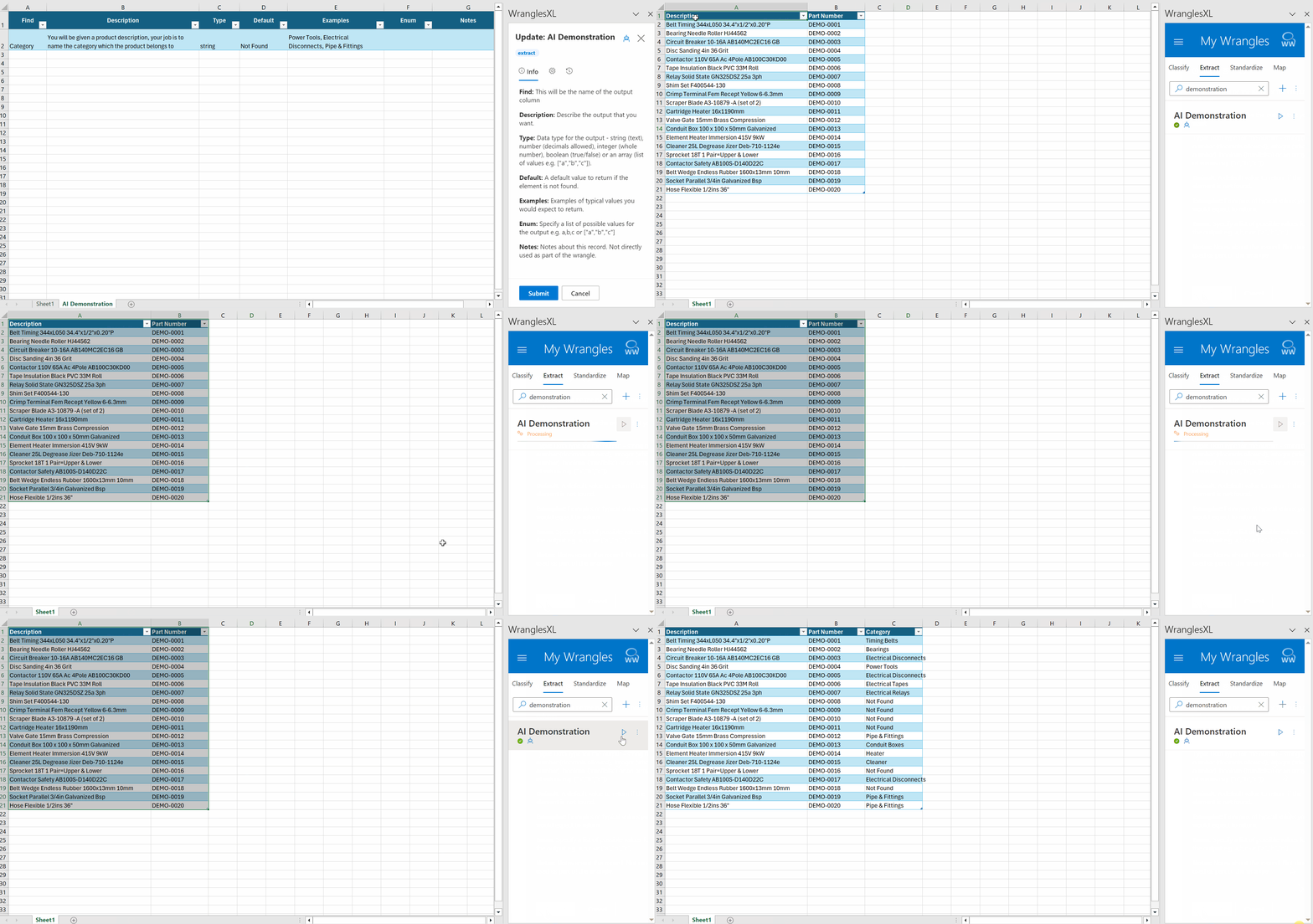
Training AI Extract Wrangles requires only two fields (Find and Description), although there are an additional 6 fields that are optional (Type, Default, Examples, Enum, Notes, and Properties).
Like other Wrangles, a new sheet will appear (entitled "Train-AI") when you create a new AI Extract Wrangle.
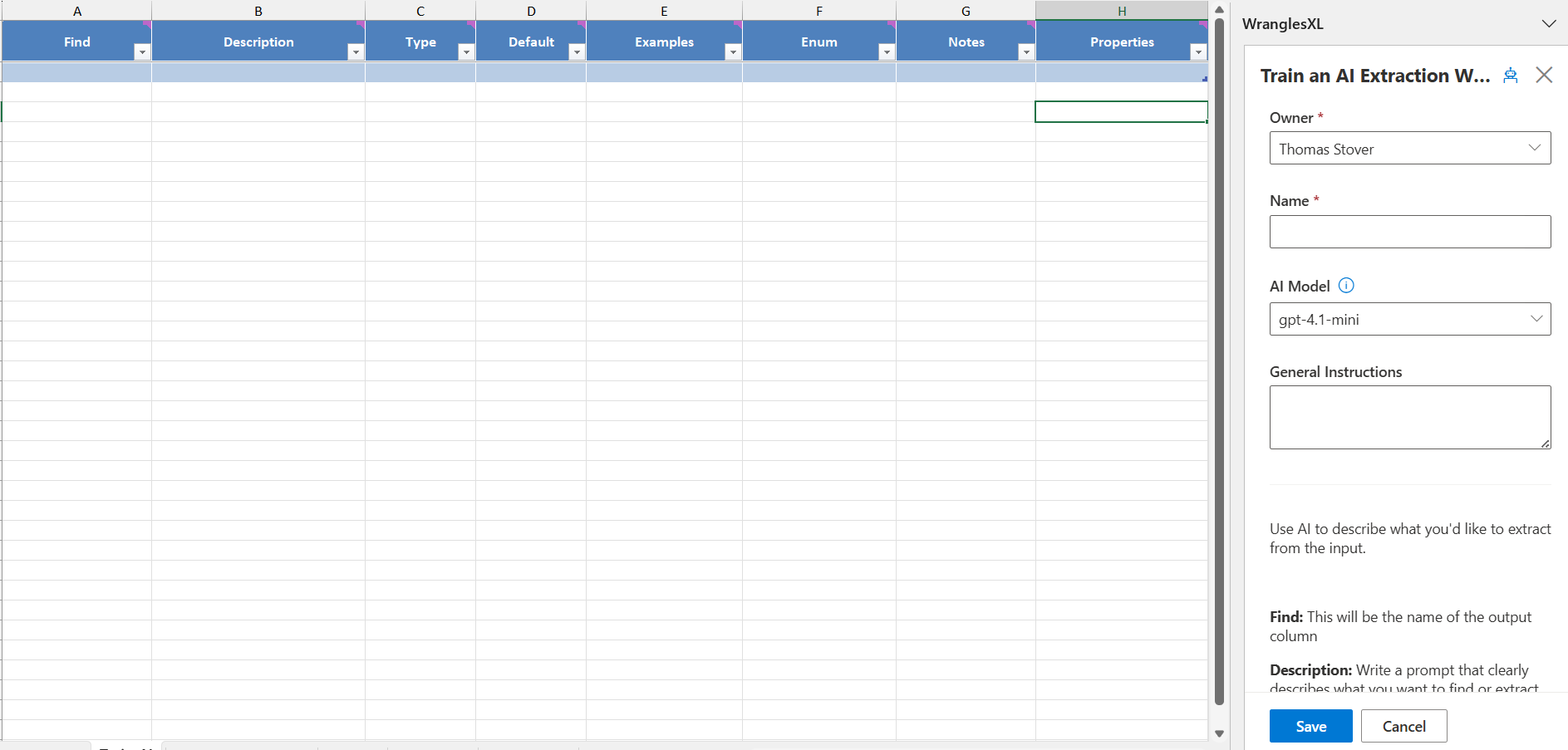
When training a new AI Extract wrangle (or also when editing), Owner, Name, AI Model, and General instructions can all be set.
Owner
The user, team, or organization that will be given admin persmission for this wrangle. Only one can be selected, but more can be added in the permissions after the model is trained.
Name
The name of the wrangle.
AI Model
The OpenAI model to be used when running this wrangle. The default model is set to gpt-4.1-mini.
General Instructions
General instructions for the ai. This can be thought of as a description of the task being performed, ie writing a description or extracting attributes.
Find
The Find parameter is the name of what you are looking to find/output. It becomes the name of the output column, but has no influence on the actual output itself.
Description
A description of the output you'd like the model to return. This can also be used to set a tone for whatever it is you are looking for. That is, you can set the stage for the job or task that the ai will be performing, so it is not just limited to a simple description of the desired output.
Type
The type of data you'd like the model to return, ie string number etc. The types are shown below:
- string
- number
- integer
- boolean
- "null"
- array
- object (Requires properties to be set)
Default
A default value to return if the element is not found.
Examples
A (comma separated) list of examples of typical values you would expect to return. This can be very useful for giving the ai more context about what it is you are looking to output, especially for more complex scenarios.
Enum
Specify a list of possible values for the output e.g. a,b,c or ["a","b","c"].
Notes
Notes about this record. Not directly used as part of the wrangle.
Properties
(Required for type: object) Specify the object properties as JSON schema {"key": {"type": "string"}} or a list of keys - key1,key2
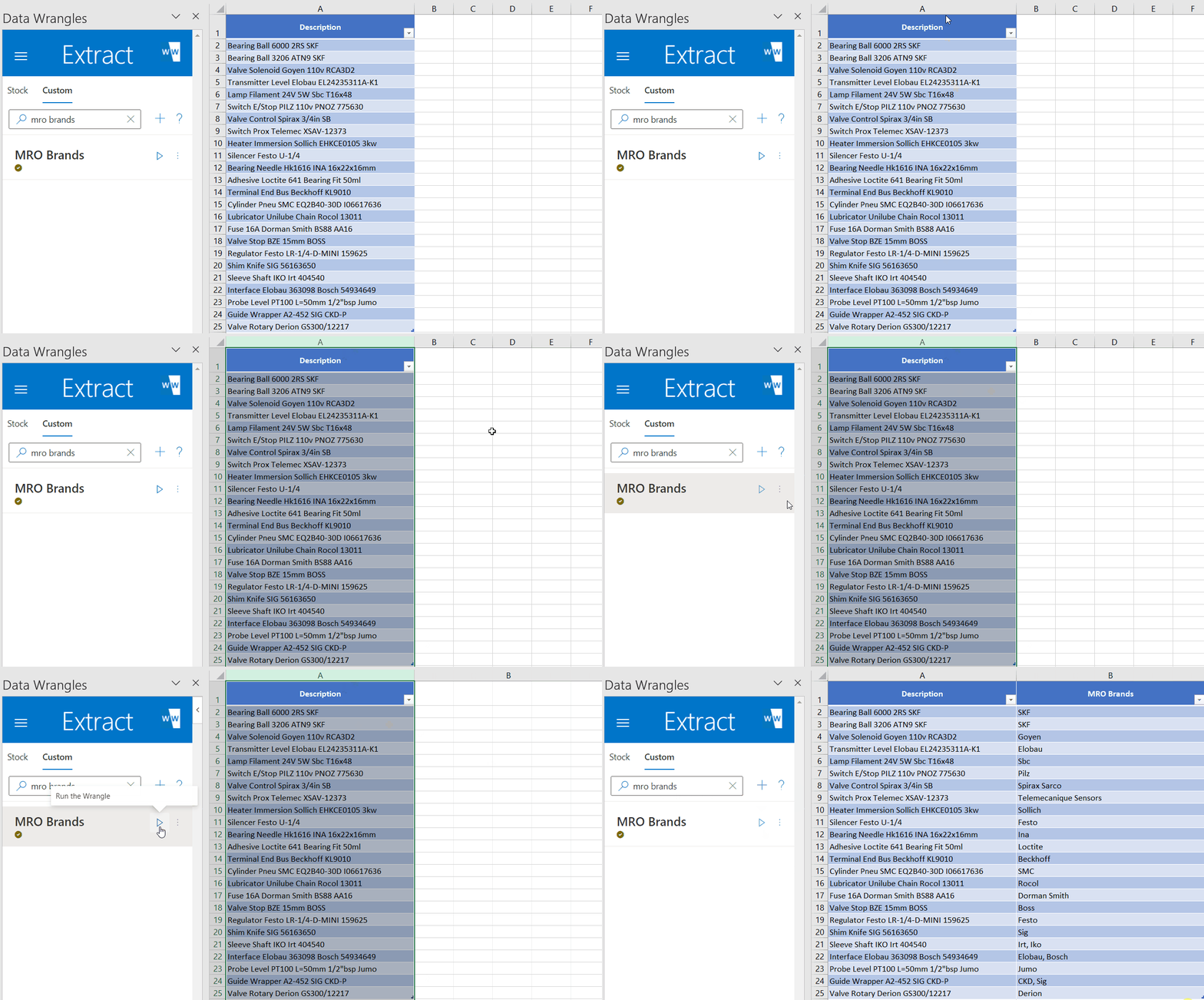
MRO Brands Example
This is an example model for extracting brands in the MRO industry.
Brand names are an essential piece of product data. Supplier brand name data is especially important on an eCommerce site where customers want to search and filter by them. As with all product attributes, brand data can be inconsistent, often buried in a field with other data (e.g. a catch-all description field).
Settings
Custom Extract Wrangles have settings that allow the user to taylor the output to their specific use case. Settings are found by clicking the gear (next to the New Wrangle button) on the extract tab. See below for a description of these settings.

General Settings
Settings that are applied accross all wrangles, not just extract wrangles.
Show Hidden
A toggle to show wrangles that have been hidden by the user.
Pattern Settings
Settings specific to pattern based extract wrangles.
Output Format
This allows users to determine how the extract will output data. There are four different options; First Element Only, Columns, JSON, and Delimited.
First Element Only
Return only the first result.
Note: This outputs matches it finds in the input based on the order they are listed in the training data.
Columns
The Columns settings allows you to output multiple results from extract in individual columns rather than as a delimited string or JSON array. This will create as many columns as are needed for each result to end up in it's own column. Keep in mind, that some rows will have more matches than others, so there will likely be many empty cells when using this setting.
JSON
Return the results as a JSON array e.g. ["result1", "result2", ...].
Delimited
Return the results separated by a delimiter of your choice. e.g. with commas: result1, result2.
Case Sensitive
Extract only values that match the Wrangle data case.
Use Labels
Extract values in the format of an object → {category: value}.
If multiple "values" are found, the value will become an array: {category: [value1, value2]}
Wrangle data must be in the form of category: value.
See here for a more in depth look at use_labels.
Use Spellcheck
Use spellcheck to also find minor mispellings compared to the wrangle data.
Extract Raw
The Extract Raw setting allows users to return the raw value of the match found. That is, it extracts matches without standardizing their output.
AI Settings
Output Format
Set how the output is formatted for AI Extracts
Columns
Return the results into separated columns.
JSON
Return the results as a JSON object e.g. {"Col1": "result1", "Col2":"result2", ...}
Converting Your DIY Extract To New Format
As of 2023-10-01, the data for DIY Extract Wrangles requires a new format. Existing wrangles will continue to work as before with the old format until converted.
The new format is:
| Find | Output (Optional) | Notes |
|---|---|---|
| BrandX | Brand_X | Brand X | |
| BrandY | Brand_Y | Brand Y |
Existing wrangles that use the old format will display a prompt to enable upgrading to the new format. This will convert the data in place, but will not be saved until it is submit.

Noteworthy Differences
- Variations now go in the Find column. These can be spaced over multiple rows, or divided with a vertical bar (|).
- If no output is provided, the value from the find column will be returned.
- If output is provided, any instances found will instead return that value.
- Rows using regex are unchanged.